 TACHYON
Big Libraries Made Easy: Updates, Sorting, Pages and Versions
How Tachyon handles libraries of 100,000 titles — the weekly library update, Refresh Library, sorting, pages of 100, categories and grouped versions of a title.
Some services carry tens of thousands of channels and over a hundred thousand movies. Tachyon is built to stay quick with all of that, on a phone or a low-cost TV box — here's how it works and how to get around.
The Library Lives on Your Device
The first time you add a service, Tachyon downloads its library: the channels, movies, series and categories. After that it opens straight from the device, so Tachyon starts in moments.
- Each library updates by itself every 7 days, counted from its own last update. Only libraries that are due update — nothing earlier.
- Refresh Library updates the service in view at once, ahead of any automatic update still waiting. It's in the rail on a TV and a computer, and in the side menu on a phone (and in Settings → Data: Refresh Libraries, on a computer Refresh Libraries Now). With All Services open, it updates every service.
- The TV Guide updates on its own schedule — see the TV Guide.
The Updating Your Library Card
While a library updates, the Updating Your Library card shows each service, the time so far and an estimate. The app waits until it's done, one library at a time, so a big update never slows down what you're doing — or crashes a small TV box.
Stop Update keeps the library you have and holds back the automatic update for a while. Refresh Library starts it again whenever you like.
Sorting
The bar over the list sorts it:
| Page | Sort By |
|---|---|
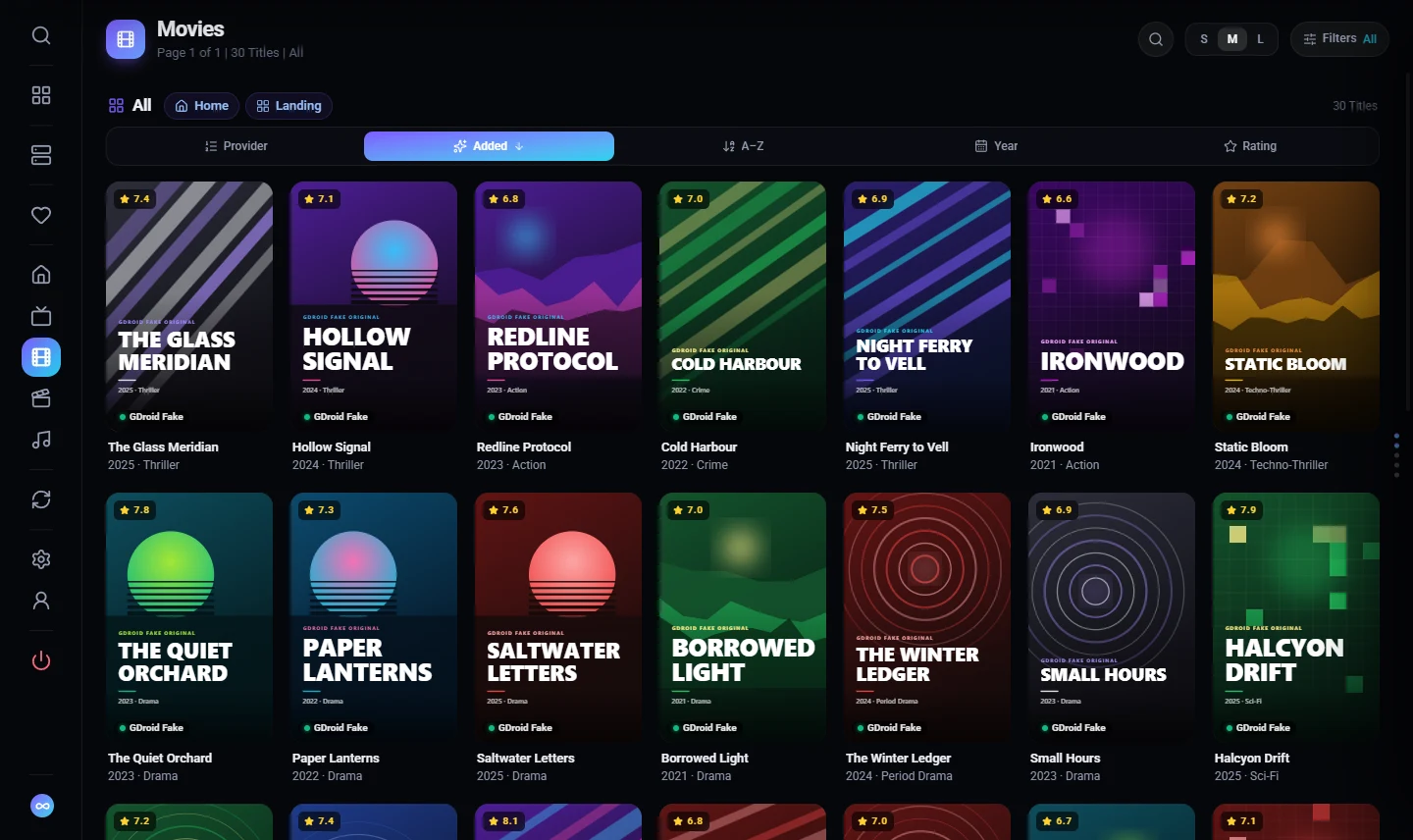
| Movies and Series | Provider (the service's own order), Added, A–Z, Year and Rating |
| Live TV | Provider, Number, A–Z and Added |
Select the lit switch again to reverse it: A–Z becomes Z–A, newest year first becomes oldest. Titles without a year or rating go last. Each page remembers its order.
Pages of 100
Long lists come in pages of 100. The pager under the sort bar has first, previous, the page numbers around yours, next and last; Pages lists every page with its titles, to jump straight to one. The end of each page offers Next Page — on a TV, press ↓ past the last row.
Zapping in the player still runs through the whole list, not just the page.
Categories and Browse By
- Pick a category from the rail (computer) or Filters (phone and TV). The categories you picked last stay at the top, so switching back is quick.
- Desktop Browse By groups categories by what the provider's names say: Platforms, Languages, Genres, Quality, Years, Regions and more. It appears only when the names really are organised that way.
- Hide categories you never use to declutter the list (Settings → Parental → Hidden Categories brings them back; on a computer: Content & Parental).
One Card per Title
Group Versions of a Title (Settings → Appearance, on by default) shows copies of a movie or series that share a TMDB id — other languages, cuts, or the same title on another service — as one poster. The title's page lists them under Available In; pick one to switch to it.
Faster Browsing on Small TV Boxes
- Android Settings → Appearance → Lite Mode gives slower boxes a lighter look: no backdrops or animations, smaller pictures. Auto turns it on for slower devices.
- Show Row Dots puts a small dot for each row of posters beside Movies and Series, so you know where you are in a long page.
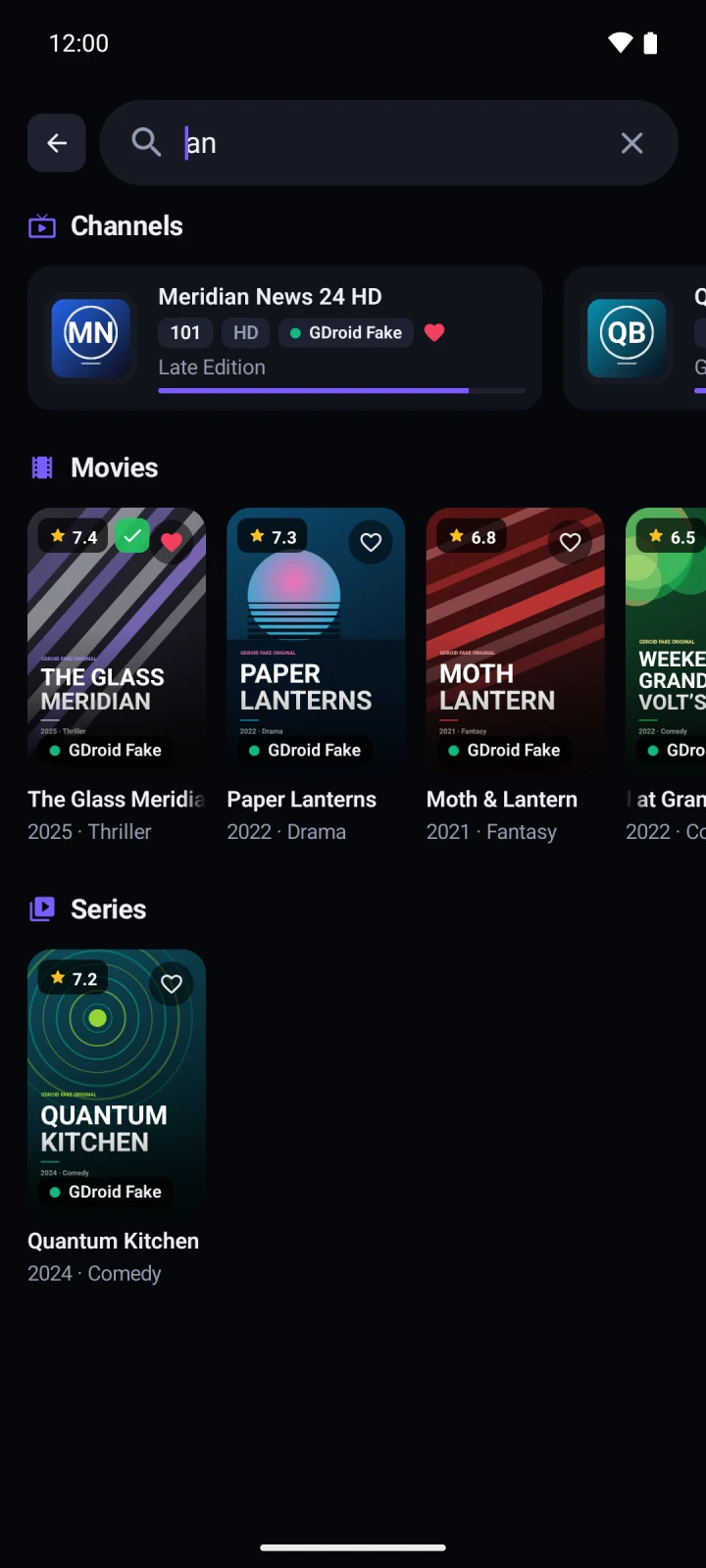
- Search and Search in This List are often the quickest way to a title.
Questions and Answers
A movie I know my provider added isn't showing. Why?
The library updates every 7 days. Select Refresh Library to update it now.
The player says "Library May Be Out of Date". What now?
Android The provider no longer has the link the title was saved with. Refresh Library leaves the player and updates that service; Continue carries on. After the update, favorites and Continue Watching follow the titles to their new links.
Does a library update use my stream connection?
No. A library is downloaded as data, not as a stream.