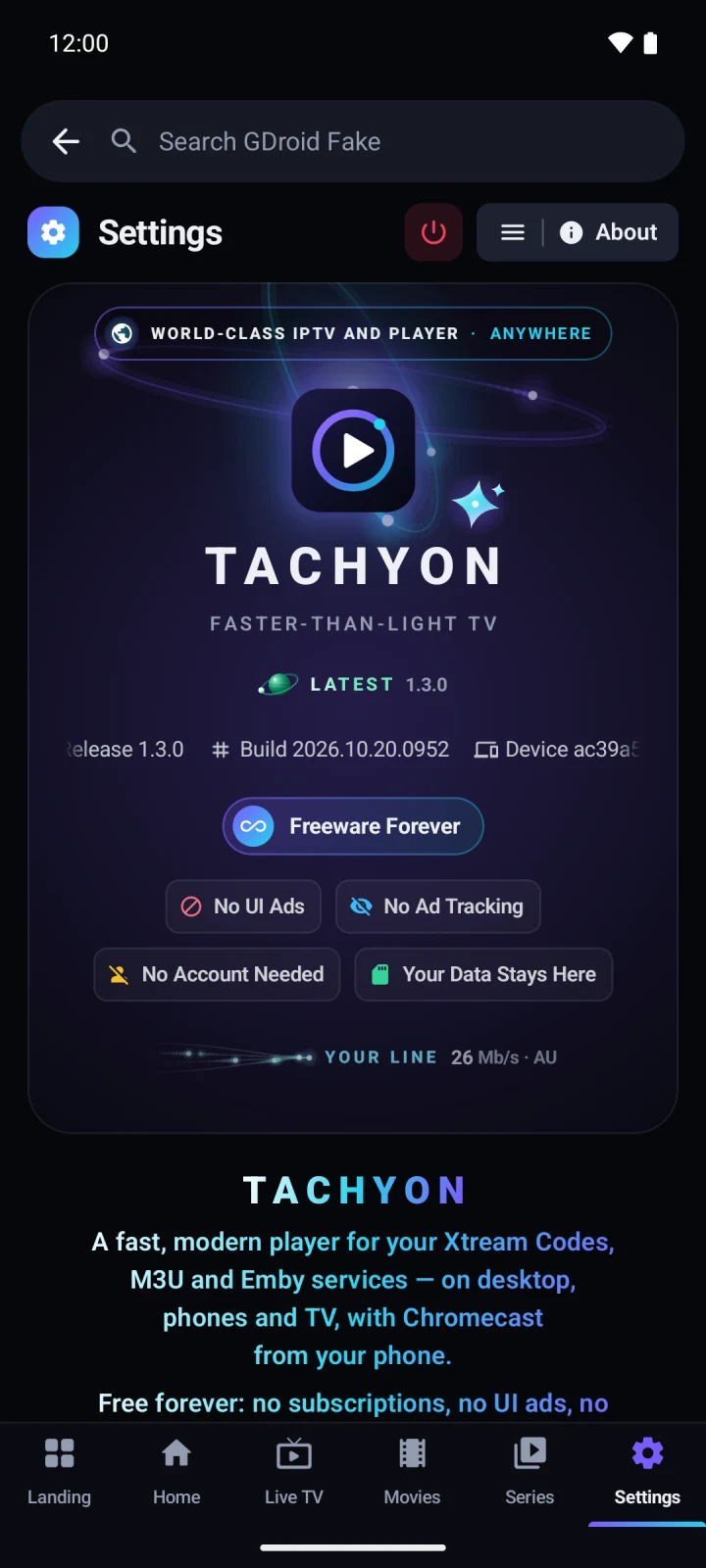
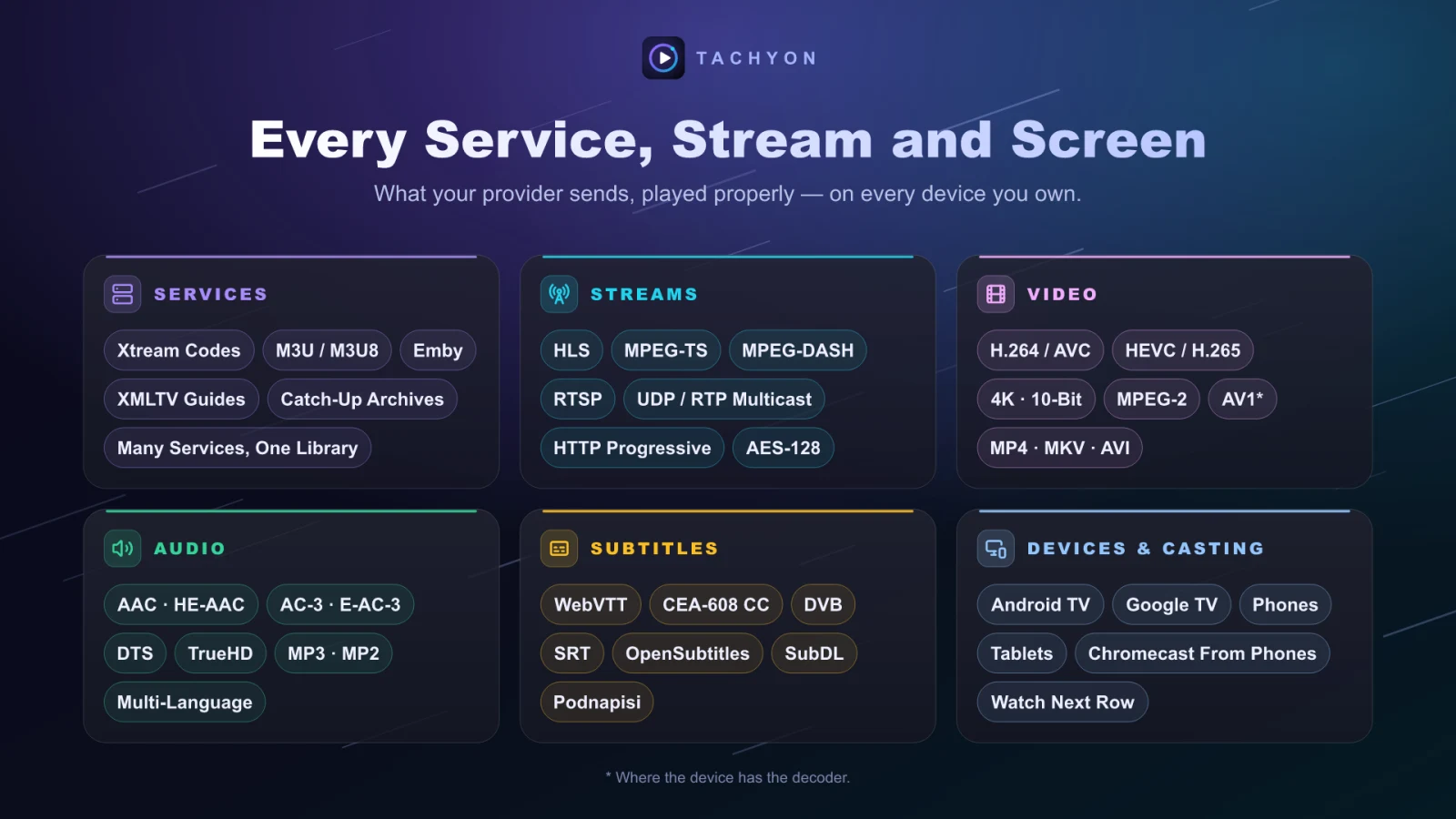
 TACHYON
Easy Settings: Change Your TV's Settings From Your Phone
Scan the QR code on your TV and every Tachyon setting opens on your phone. Add services with a real keyboard, back up the TV and save straight to it.
Typing a server address, a username and a long password with a TV remote is nobody's idea of fun. Easy Settings puts the TV's settings on your phone (or a computer): scan a QR code on the TV, and the whole of Tachyon's Settings opens in the phone's browser. Everything you change there is saved straight to the TV.
Connect Your Phone
- On the TV, open Settings → About, or press Easy Settings at the top of any Settings page.
- Put your phone on the same Wi-Fi as the TV.
- Scan the QR code with the phone's camera. No camera handy? Type the address shown beside the code into any browser.
- The page opens on Services; the tabs at the bottom have the rest.
The tile on the About page shows a dot: orange while it waits for a phone, green once a phone is connected.
What You Can Do There
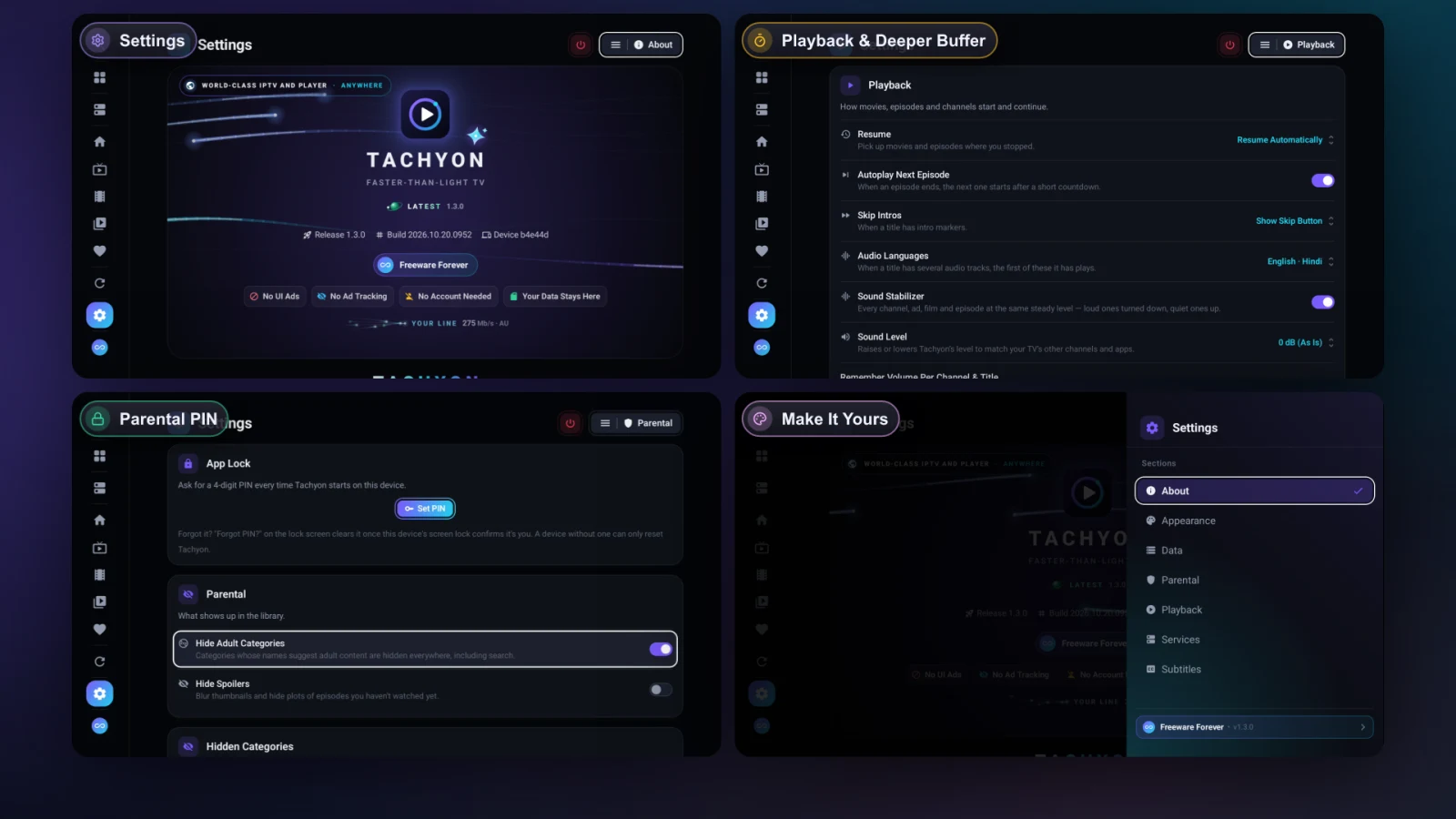
- Change any setting, on the TV's own tabs: Appearance, Data, Parental, Playback, Services and Subtitles. It saves to the TV at once, and changes made on the TV show up on the phone within seconds.
- Add, edit, reorder or remove services with your phone's keyboard. A service's More Options has the same TV Guide and Advanced options as the TV's form. Passwords stay hidden unless you tap the eye.
- Service Sync: set the TV up as the main device or sync it from one, on the Services tab. See Service Sync.
- Back up and restore the TV: the Data tab exports the TV's settings file to your phone, or imports one into the TV — handy, as a TV has no file picker. See Back Up and Move Your Settings.
- Subtitles: the subtitle look with a live preview, and the logins or API keys for the online subtitle services.
Every page of Easy Settings has its own address, so you can keep a link to, say, the Services tab.
Safe by Design
- The page only works while the TV shows its About page. Leave it and the TV stops answering. If a phone is connected, the TV asks Leave Easy Settings? before you go.
- The address holds a code that changes every day. New Code on the TV changes it at once, and a phone on the old code has to scan again.
- Only devices on your home network can open it, and a device that keeps guessing codes is shut out.
- With App Lock set, the parental settings ask for its PIN on the phone too.
Questions and Answers
The page doesn't open. What should I check?
Check that the phone is on the same Wi-Fi as the TV (not on mobile data or a guest network), and that the TV is still showing its About page. If the code changed (a new day, or New Code), scan again.
Does it work from a computer?
Yes. Type the address shown on the TV into a browser on a computer on the same network.
Does my phone need the Tachyon app?
No. Any web browser works. The QR code opens a Tachyon web page first, which then goes straight to your TV.