 TACHYON
Watching on a Phone: Swipes, Pop-Out Window and More
Use Tachyon's player on an Android phone or tablet: swipe for volume, brightness, skipping and channels, keep watching in a pop-out window, and cast to a TV.
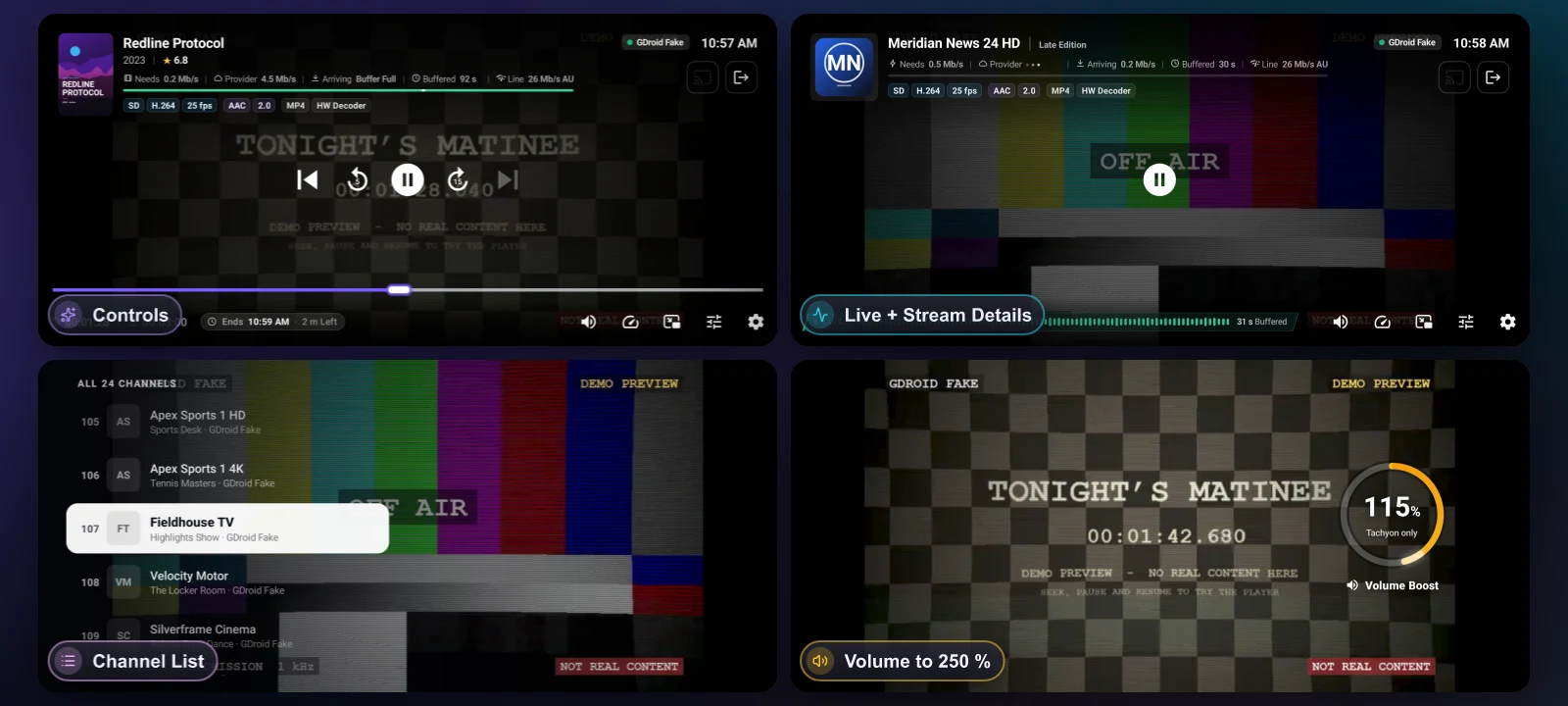
On a phone, Tachyon's player is driven by your thumb: a tap shows the controls, and a swipe on the picture changes the volume, the brightness, the time or the channel — no buttons needed.
Touch Gestures
| Gesture | What It Does |
|---|---|
| Tap | Shows or hides the controls |
| Swipe up / down on the right half | Tachyon's volume |
| Swipe up / down on the left half | Brightness of the picture |
| Swipe left / right on a movie or episode | Skip back / ahead — keep sliding for bigger jumps |
| Swipe left / right on a live channel | Opens the channel list and moves through it |
| Back | Asks Exit Playback? |
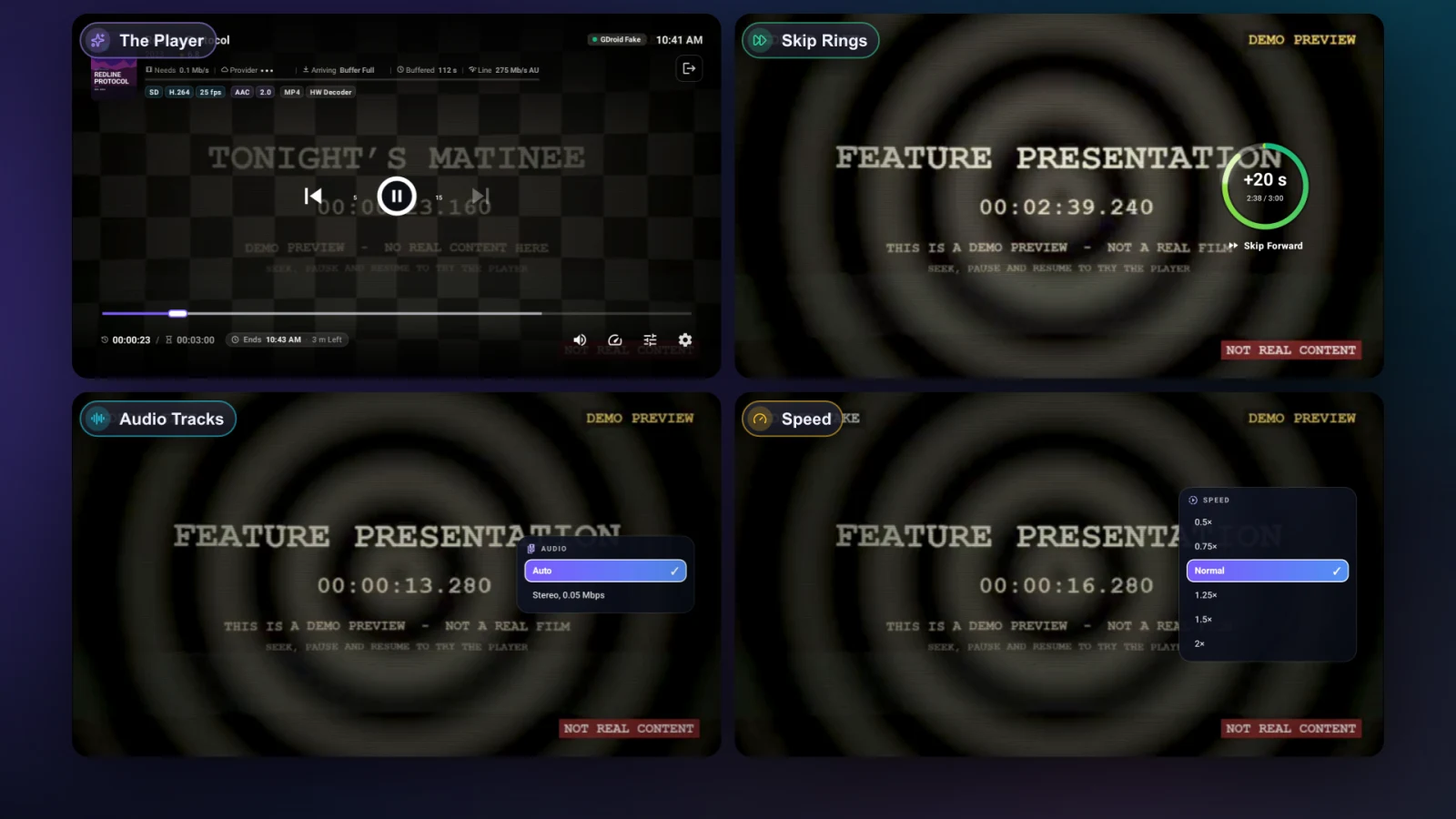
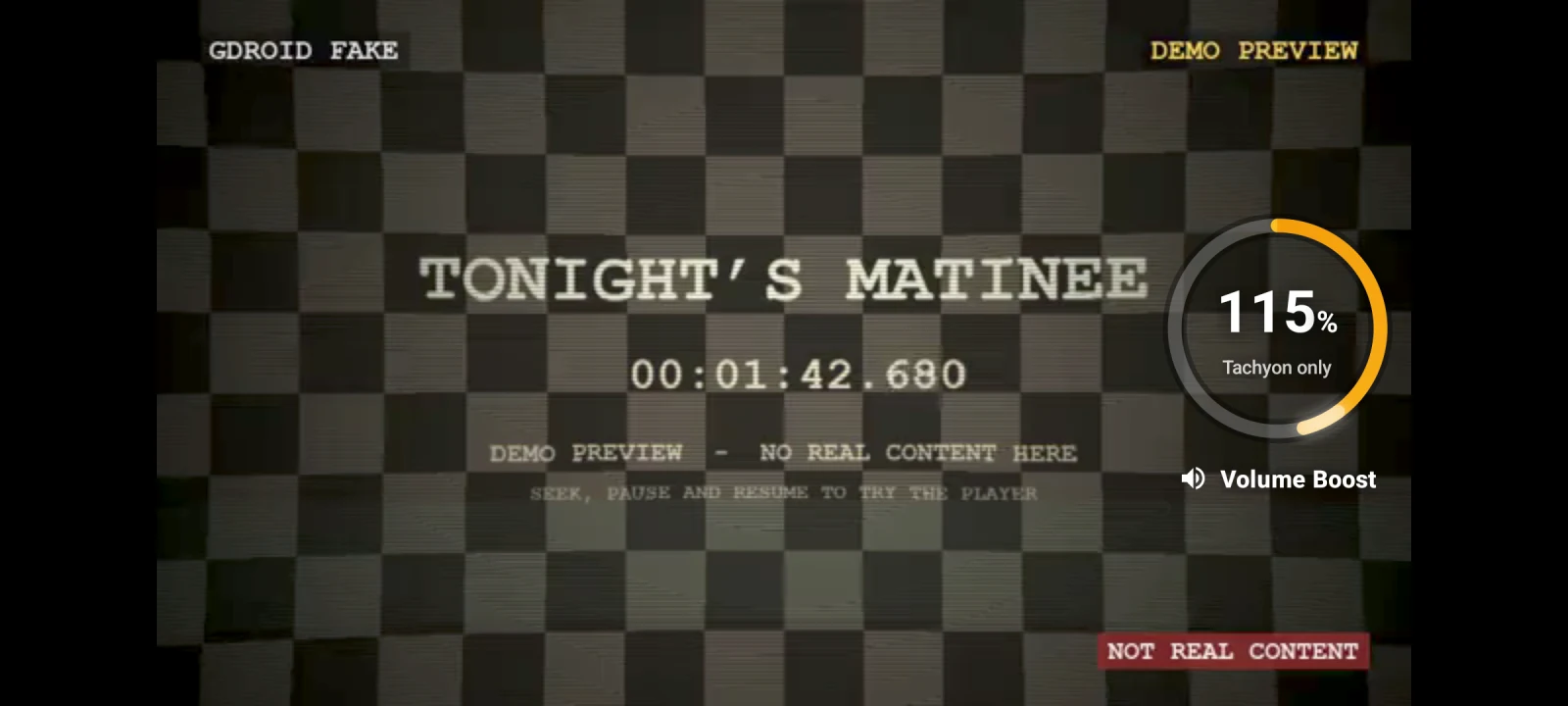
A ring shows the level as you move, with your change lit up. Player Options → Touch Gestures lists them all in the player.
- Volume is Tachyon's own: your phone's volume and every other app stay as they are — handy for watching quietly during a call. It stops at 100 %; with Settings → Playback → Allow Volume Above 100 % on, it goes on to 250 %, pausing at 125, 150 … 225 % (start a new swipe to go past).
- Brightness changes only the picture while you watch; your phone's brightness setting stays as it was.
- Skipping jumps as far as the skip buttons with each step. The ring shows how far and the new time, and the player jumps once you let go.
- Channels: while the list is open, swiping up or down anywhere moves through it. Tap a channel to switch to it. Its title says what you're browsing, like News · 8 Channels or Favorites · 3 Channels.
The Controls
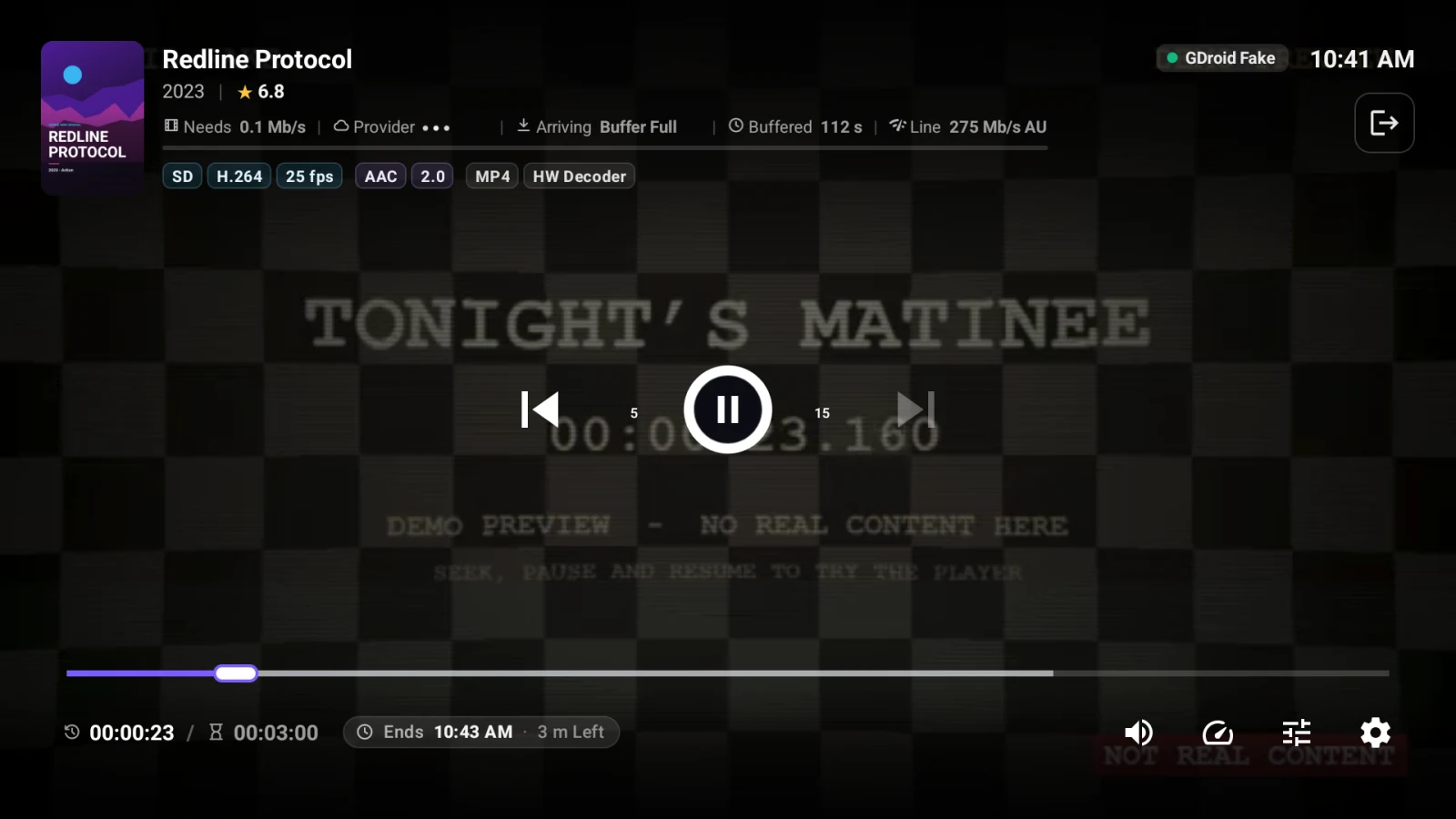
- The header: the title or channel (with the programme on now), the service, the clock, Cast and Exit.
- Movies and episodes: the time bar with what's buffered ahead, the time played and Ends 9:42 PM · 43 m Left, and back / forward 10 s. At the end, the next episode follows by itself (Autoplay Next Episode).
- Live channels: a Live badge that turns orange or red when the channel struggles, and a bar showing how much is buffered ahead.
- Buttons: Audio (when there's a choice), Subtitles, Volume, Pin Stream Info, Episodes (for a series) and the menus. Player Options has Start Over / Back to Live, Quality, Audio, Subtitles, Speed, Picture Size, Volume, Brightness, Decoder, Sleep Timer and Refresh Stream. See Player Options.
Keep Watching in a Pop-Out Window
With Settings → Playback → Auto Pop-Out on (the default), leaving the app while something plays — the Home button, another app, a notification — keeps it playing in a small window on top. Android's own controls on the window bring it back to full screen or close it.
- It works for live channels, movies and series.
- A phone call pauses the player (full screen or pop-out), and it plays on when the call ends.
- Turn Auto Pop-Out off and leaving the app stops playback instead.
Cast to a TV
Press Cast in the player's header (or on a movie's page) to send it to a Chromecast or Google TV on your Wi-Fi. The TV fetches the stream itself and your phone lets go of its own, so you still use one connection. See Cast to Your TV With Chromecast.
Questions and Answers
Can I make the phone's own volume move instead?
Yes. Turn off Settings → Playback → Tachyon's Own Volume, and the player's volume moves your phone's media volume instead.
The pop-out window doesn't appear. Why?
Check that Auto Pop-Out is on in Settings → Playback, and that Android allows picture-in-picture for Tachyon (in the phone's settings for the app). Opening the recent-apps screen and switching from there is one case where Android itself doesn't allow the pop-out.
How do I see all the gestures in the app?
Open Player Options → Touch Gestures while something plays, or About → How To → Use Gestures on Your Phone.