 TACHYON
Player Options: Quality, Picture Size, Sleep Timer and More
A guide to Tachyon's Player Options on TV, phone and computer: Start Over, quality, audio, subtitles, speed, Picture Size, Sleep Timer and more.
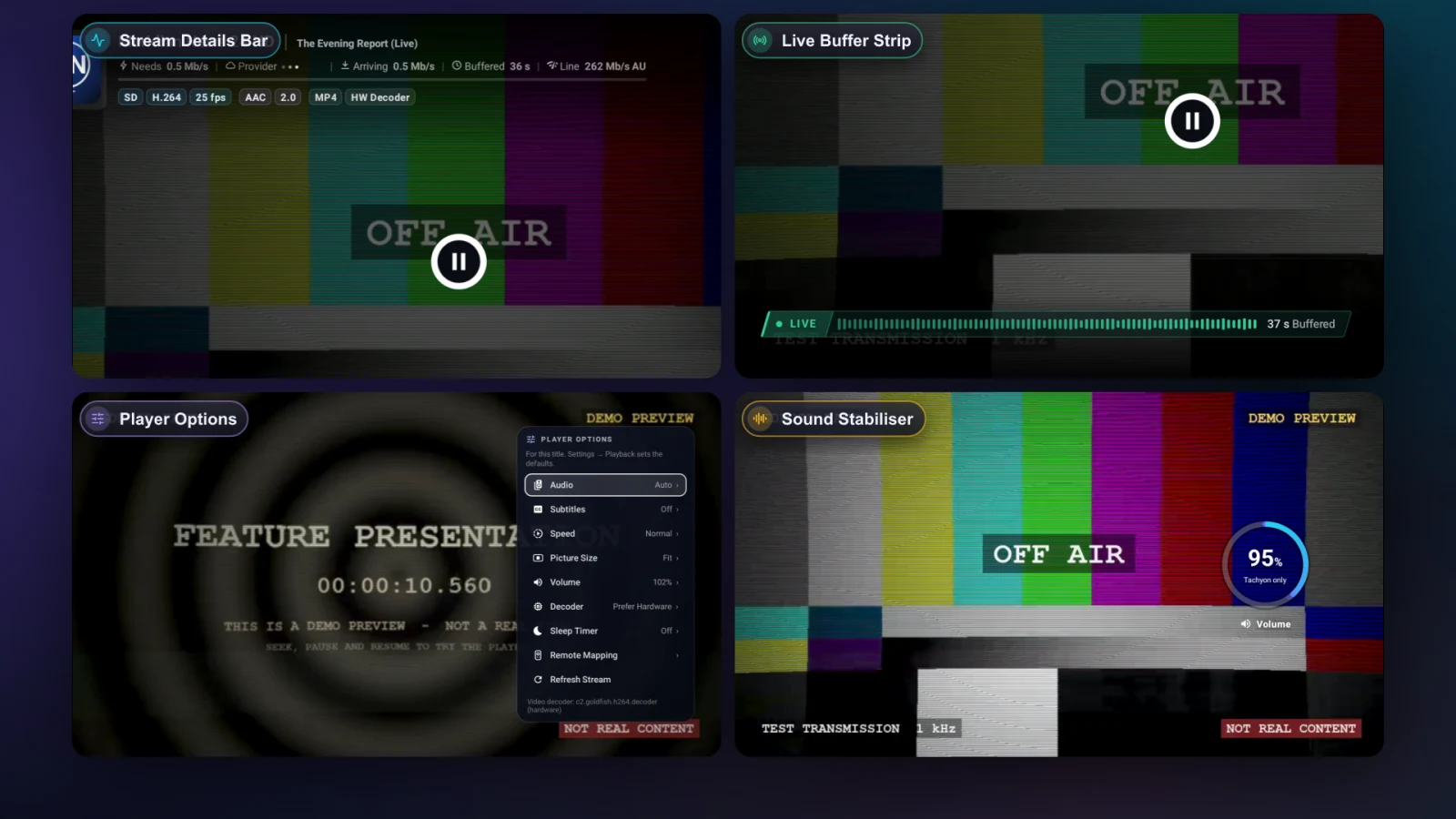
Player Options is the player's one menu for everything beyond play and pause. It's the same set on every device, with a few extras where a device can do more.
Opening It
- TV Press OK twice quickly, or Menu, or the sliders button in the bottom bar.
- Phone The sliders button in the bottom bar.
- Desktop O, Enter twice, or the sliders button.
Each row opens a page; Back returns. What you choose applies at once.
What's in It
| Option | What It Does |
|---|---|
| Start Over / Back to Live | On a live channel with catch-up: the programme on now from its start, and back again. |
| Quality | The stream's quality levels. Desktop Emby: Auto, Original or a fixed rate. |
| Audio | Every audio track with its language. |
| Subtitles | The stream's subtitles and the subtitle look. Desktop Online search and Load Subtitle File too. |
| Speed | Movies and episodes (not live TV): 0.5× to 2× on Android, 0.25× to 3× on a computer. |
| Picture Size | How the picture fills the screen: Fit, Fill (Crop), Zoom, Stretch, 16:9, 4:3 and more. |
| Volume | Android Tachyon's own volume, up to 250 % when allowed, and mute. On a computer it's on the Sound page. |
| Brightness | Phone The picture's brightness. |
| Decoder | Android Hardware or software decoding for this channel. |
| Sleep Timer | Pause after 15 minutes to 2 hours, or at the end of this title. |
| Remote Mapping / Touch Gestures / Keyboard Mapping | Every key or gesture, as it works right now. |
| Refresh Stream | Opens the stream again — the quick fix for a stuck picture. |
Picture Size, Remembered
Android Picture Size and Decoder are kept per channel (and per title for movies and episodes): set a stretched 4:3 channel to Fit once and it stays that way. The default for everything else is Settings → Playback → Video Player → Aspect Ratio. Desktop A cycles the sizes and Z zooms.
Decoder: When a Channel Shows a Broken Picture
On Android, a channel normally plays on the device's hardware decoder — smooth and easy on power. If one channel shows a broken or frozen picture while the sound plays, set Decoder to Prefer Software for it. Tachyon also tries the software decoder by itself once when the hardware one fails, and remembers it for that channel.
Sleep Timer
Falling asleep in front of a film? Sleep Timer pauses playback after the time you pick, or at the end of the title you're watching.
Desktop Extras
The desktop player's options also have Picture (brightness, contrast, saturation and hue), a Sound page with Night Mode, Mono Audio, Balance and a Bass / Voice / Treble equaliser, Buffering (Low Latency, Balanced or Max Stability), Auto-Reconnect and Stats for Nerds.
Questions and Answers
Where is Start Over?
On a live channel whose provider keeps an archive, it's the first row of Player Options. It also sits in the TV Guide's programme details. See Catch-Up and Start Over.
Why is there no Quality option?
Android The Quality row shows only when the stream has more than one quality. Many live channels have just one; another version of the channel (HD, FHD, SD) may be listed under the channel instead.
Why is there no Speed option on live TV?
A live channel can't play faster than it's broadcast. Speed is for movies and episodes.