 TACHYON
Watching on TV: Every Remote Key in Tachyon's Player
How to use Tachyon's player with a Google TV, Android TV or Fire TV remote — volume, the channel list, skipping, pausing and Player Options, key by key.
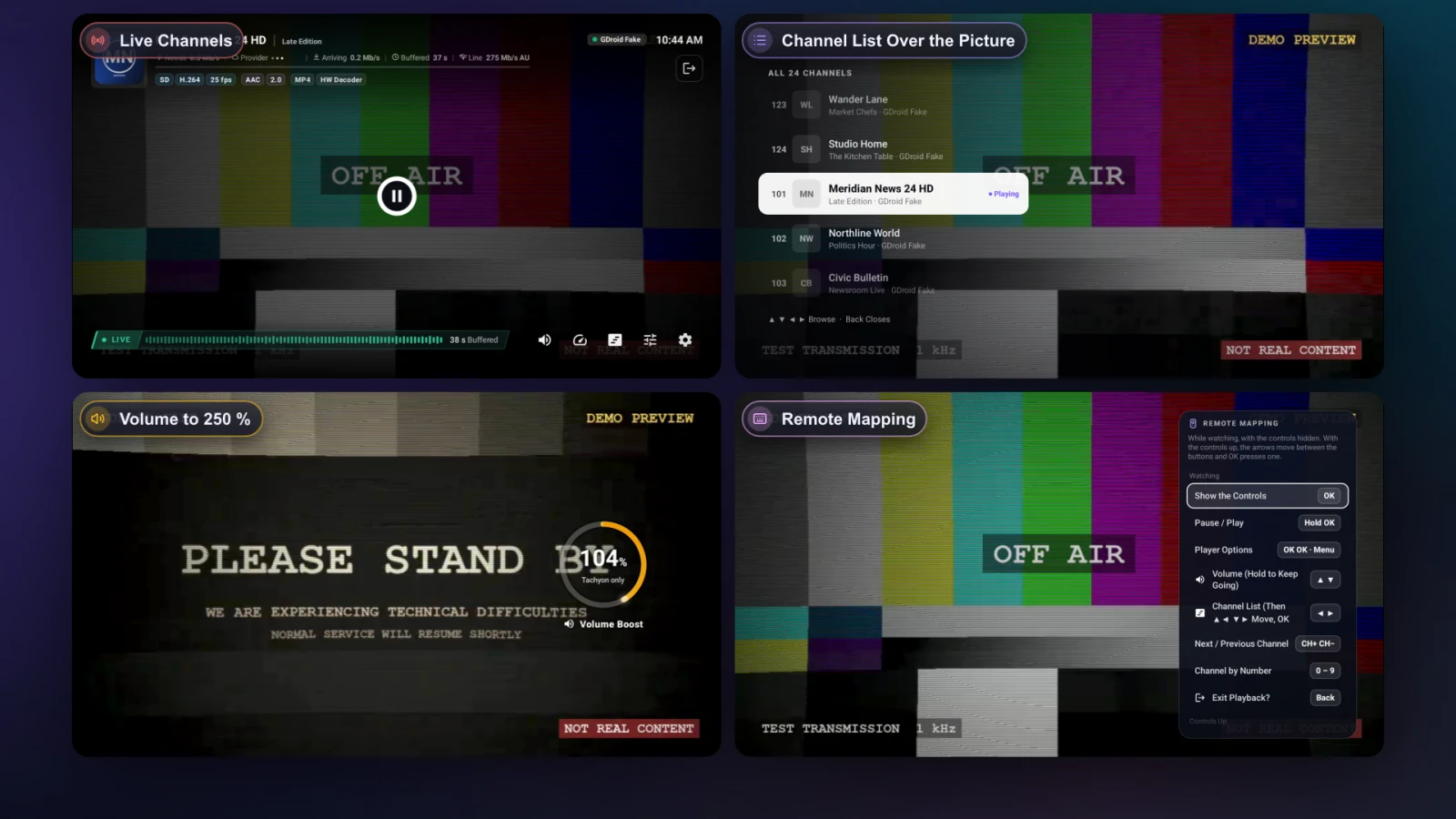
Tachyon's TV player is made for the simplest remote: a D-pad, OK and Back reach everything. It keeps the picture clear and answers the remote directly, so the things you do most need no menu.
While You Watch (Controls Hidden)
| Key | Live TV | Movies and Episodes |
|---|---|---|
| OK | Shows the controls | Shows the controls |
| OK OK (twice quickly) or Menu | Player Options | Player Options |
| Hold OK | Pause / play at once | Pause / play at once |
| ↑ ↓ | Tachyon's volume (hold to keep going) | Tachyon's volume |
| ← → | The channel list beside the picture | Skip back / ahead 10 s (a run of presses adds up) |
| CH+ CH− | Next / previous channel at once | — |
| 0–9 | Channel by number | — |
| Back | Asks Exit Playback? | Asks Exit Playback? |
With the Controls Up
The arrows move between the buttons and OK presses one; Play / Pause has the focus first. Back hides the controls while it plays. When it's paused, the controls stay up, and Back asks Exit Playback?
The bottom bar holds, in order: Audio (when a title has more than one track), Subtitles (when there are subtitles to pick), Volume (a press mutes, another brings the sound back), Pin Stream Info (with Show Stream Details on), then TV Guide, Episodes (for a series), Player Options and Playback (audio, subtitles, Picture Size and speed).
The Channel List
On a live channel, ← or → opens Channels beside the picture: the channel playing (marked ● Playing) with two before and two after.
- ↓ / → moves to the next channel, ↑ / ← to the previous one — the picture keeps playing.
- OK plays the one you picked.
- Back, or five seconds without a key, closes the list; the channel keeps playing.
Zapping stays inside the list you started from: a category, Favorites or search results. Fast presses open only the channel you stop on.
Volume on a TV
The ↑ ↓ keys move Tachyon's own volume, shown as a ring on the right. Your TV's volume stays where it is, so the TV's remote volume buttons still work as always.
- The volume stops at 100 %. With Settings → Playback → Allow Volume Above 100 % on, it goes on to 250 % for quiet channels — it pauses at 125, 150, 175, 200 and 225 %; press again to go past each one.
- Prefer the arrows to move the TV's own volume? Turn off Settings → Playback → Tachyon's Own Volume.
- Player Options → Volume sets it in steps, and Mute is on the Volume button.
See Sound Stabilizer and Volume Up to 250 %.
Live TV Extras
- The badge at the start of the bottom bar tells you how the channel is coming in: a green Live is smooth, an orange Live is a closer call, and red names the trouble (Buffering, Slow Provider, Low Buffer, No Signal, Reconnecting, Off Air).
- TV Guide in the bottom bar asks Go to TV Guide? and opens the guide on the channel you're watching.
- On a channel with catch-up, Player Options → Start Over plays the programme on now from its start; Back to Live returns. See Catch-Up and Start Over.
Movies and Series Extras
- Episodes opens the series' episodes beside the picture, season by season; pick one to play it.
- The next episode starts by itself after a short countdown (Autoplay Next Episode), which you can cancel.
- Skip Intro shows when the server marks an intro (Emby).
Good TV Settings
- Settings → Playback → Match Frame Rate: the TV switches to the video's frame rate (24, 25, 50 or 60) for judder-free motion. The screen may go dark for a moment when a stream starts.
- Settings → Playback → Video Player → Surround Passthrough: sends Dolby and DTS sound to your TV or receiver untouched. If some channels play without sound, set it to Off.
- Settings → Appearance → Lite Mode: a lighter look for slower TV boxes.
Questions and Answers
Why don't the remote's volume buttons change Tachyon's volume?
On Google TV and Android TV, the system handles the volume buttons itself before any app sees them, so they change the TV's volume. Tachyon's own volume is on ↑ ↓ while you watch, and in Player Options → Volume.
How do I pause?
Hold OK, or press OK to show the controls and press it again on Play / Pause.
Can I see the guide without leaving the channel?
Yes: the TV Guide button in the bottom bar opens the guide on the channel you're watching, and the channel list (← →) shows what's on every channel while the picture keeps playing.