The complete list of keyboard shortcuts in Tachyon for Windows, macOS and Linux — browsing, zapping, volume, skipping, subtitles, the mini player and more.
The Player2 Min ReadDesktop
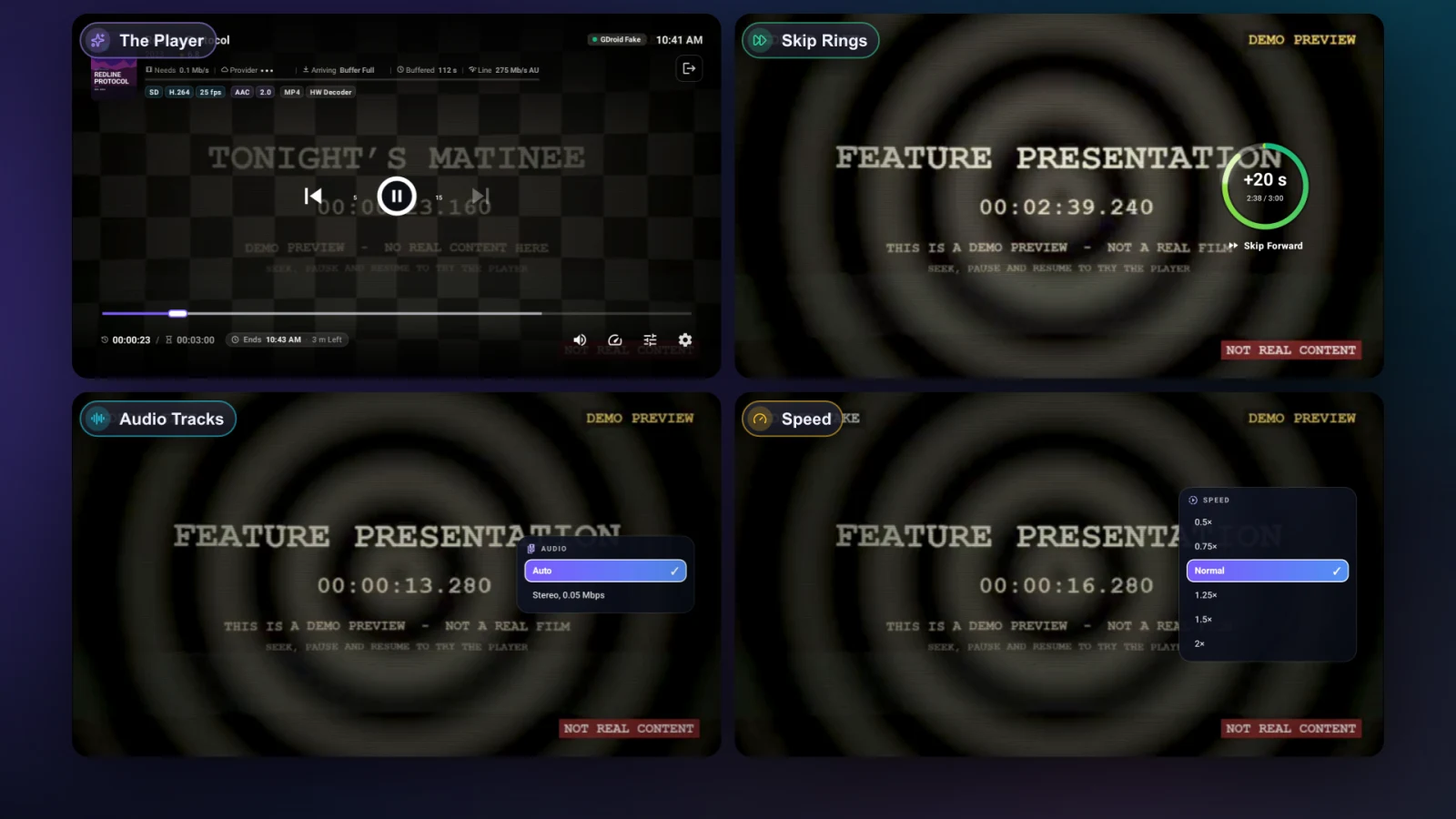
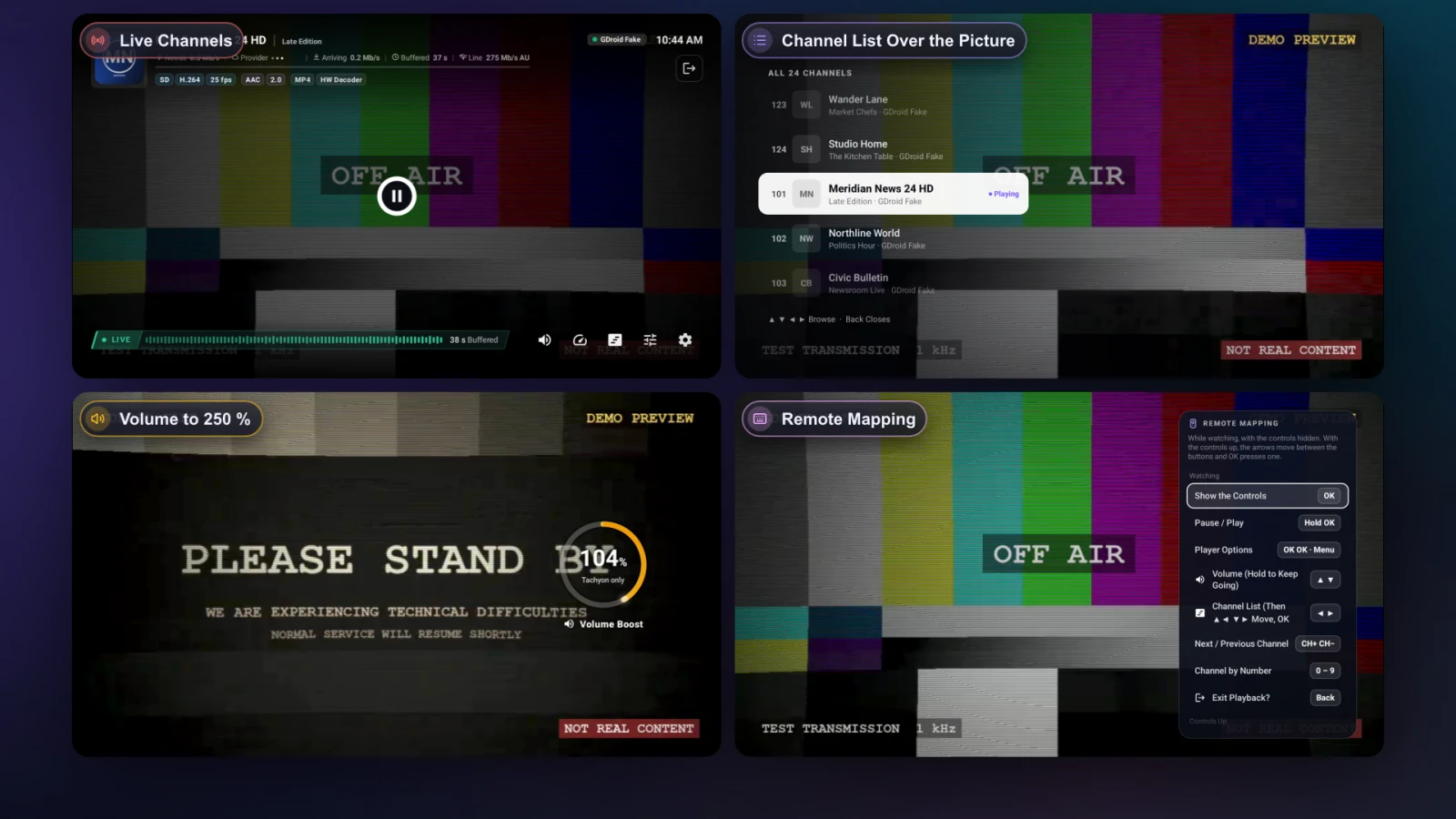
Tachyon's desktop app can be used entirely from the keyboard. Here's every key. You don't have to learn them: press ? in the player for Keyboard Mapping over the picture, or open Settings → Shortcuts for the full list.
Everywhere
Keys
What They Do
Ctrl K or /
Search
Ctrl ,
Settings
Esc or Backspace
Back
←↑↓→
Move around, TV-remote style
Enter
Select
*
Add or remove the focused item from Favorites
I
Details of a Continue Watching or Next Up card
Delete
Remove a Continue Watching or Next Up card
Menu or right-click
Options for the focused item
In the Player: Watching
Keys
What They Do
Space or K
Play / pause
Enter
Show the controls (then play / pause)
EnterEnter
Player Options
Hold Enter
Pause at once
O
Player Options
F or double-click
Full screen
Esc or Backspace
Close a box · hide the controls · Exit Playback?
Volume
Keys
What They Do
+− or the mouse wheel
Volume — stops at 100 %, then 125 … 225 % when allowed
Shift ↑Shift ↓
Volume on a live channel
↑↓
Volume on a movie or episode
M
Mute
Channels
Keys
What They Do
↑↓
The channel list on a live channel
PgUpPgDn
Channel up / down at once
0–9
Channel by number (Enter switches at once)
Q
Back to the previous channel
L
Channel list (live) · forward 10 s (titles)
G
Back to live
E
TV Guide (live) · Episodes (series)
*
Add the channel to Favorites
Skipping and Speed
Keys
What They Do
←→
Back / forward 10 s
Shift ←Shift →
Back / forward 60 s
J
Back 10 s
,.
One frame back / forward (paused)
[]
Slower / faster
\
Normal speed
N
Next episode
Picture, Tracks and More
Keys
What They Do
A
Picture Size
Z
Zoom
B
Next audio track
C
Next subtitles
R
Refresh the stream
S
Screenshot
I
Stats for Nerds
P
Mini player
T
Always on top
? or H
Keyboard Mapping over the picture
Questions and Answers
How do I see the shortcuts inside the app?
Press ? (or H) while something plays for the Keyboard Mapping over the picture, or open Settings → Shortcuts.
Why do ↑ and ↓ do different things on channels and movies?
On a live channel, ↑ ↓ open the channel list so you can zap; on a movie or episode there are no channels to browse, so they change the volume. Shift ↑Shift ↓ change the volume on a channel.
 TACHYON