 TACHYON
Tachyon on Your Computer: The Desktop App for Windows, macOS and Linux
Everything about Tachyon's desktop app — installing it, the window buttons, Big-Screen Mode, the mini player, external players, Lens and staying up to date.
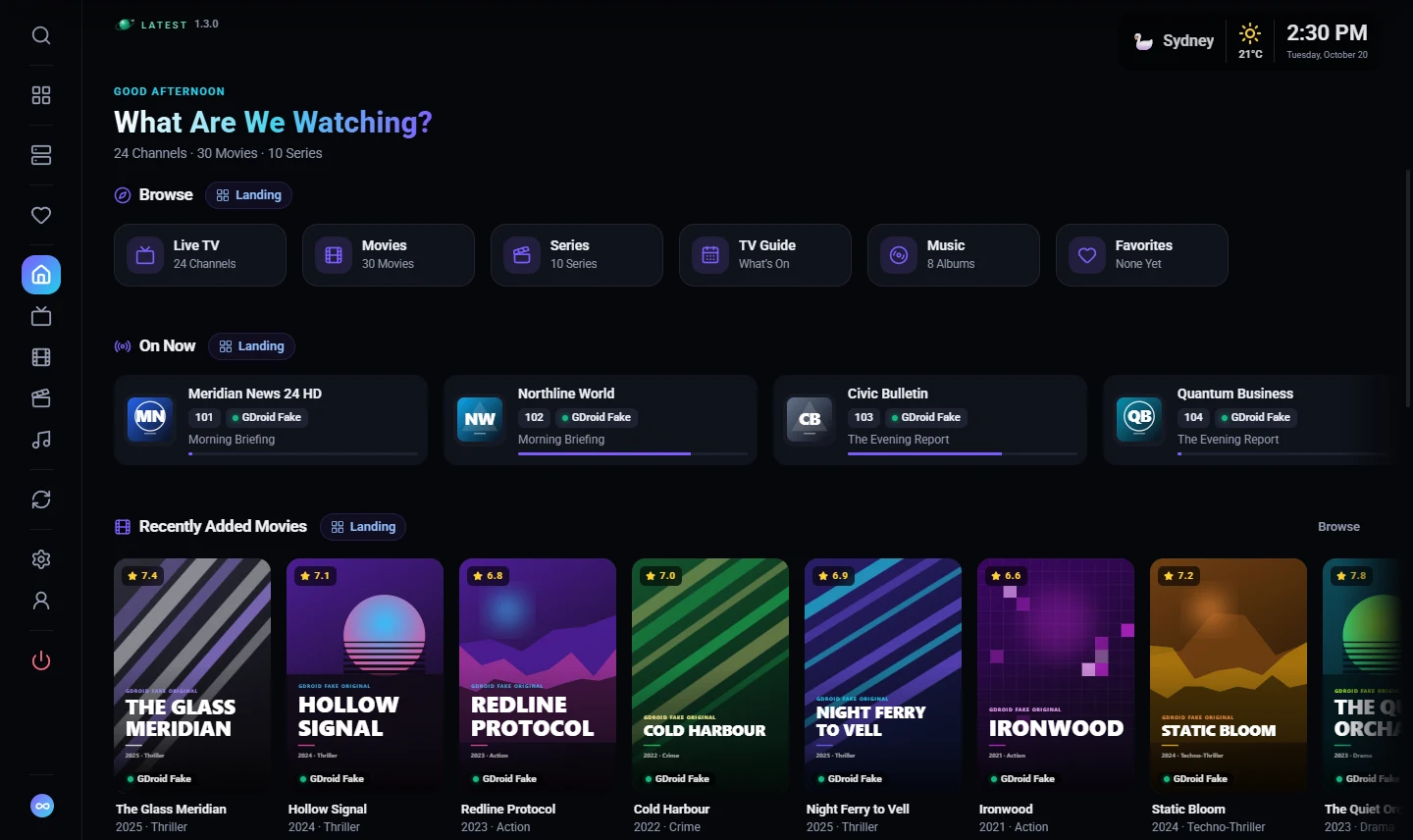
Tachyon's desktop app is the same Tachyon as on your TV and phone — the same services, Home, guide and player — made for a mouse, a keyboard and a big window. It runs on Windows 10 and 11 (64-bit), macOS 11 or newer (Apple Silicon and Intel) and Linux (AppImage, x86_64 and arm64).
Installing
Get the file for your system from the Download page:
- Windows: the Installer sets Tachyon up for your user (no admin prompt), adds it to the Start menu and starts faster. The Portable .exe runs from anywhere — a USB stick, Downloads — with nothing installed. Same app, same settings; switch any time. If SmartScreen says "Windows protected your PC", select More Info → Run Anyway.
- macOS: open the .dmg and drag Tachyon to Applications. The first time, macOS asks you to confirm: System Settings → Privacy & Security → Open Anyway.
- Linux: make the AppImage runnable (Properties → Permissions, or
chmod +x) and double-click it. On Ubuntu 22.04 and newer, installlibfuse2first if nothing happens.
The install guides have every step, with what to do when your system stops it.
The Window
Tachyon draws its own title bar, with these buttons on the right:
- Fit to 16:9 (on Landing) shapes the window to the screen's proportions.
- Centre on Main Screen brings the window back to the middle of your main display — handy after unplugging a monitor.
- Pin on Top keeps Tachyon above other windows.
- Minimise, Maximise and Close on Windows and Linux; on a Mac, the usual traffic lights.
Tachyon remembers where you put the window and how big it was.
Getting Around
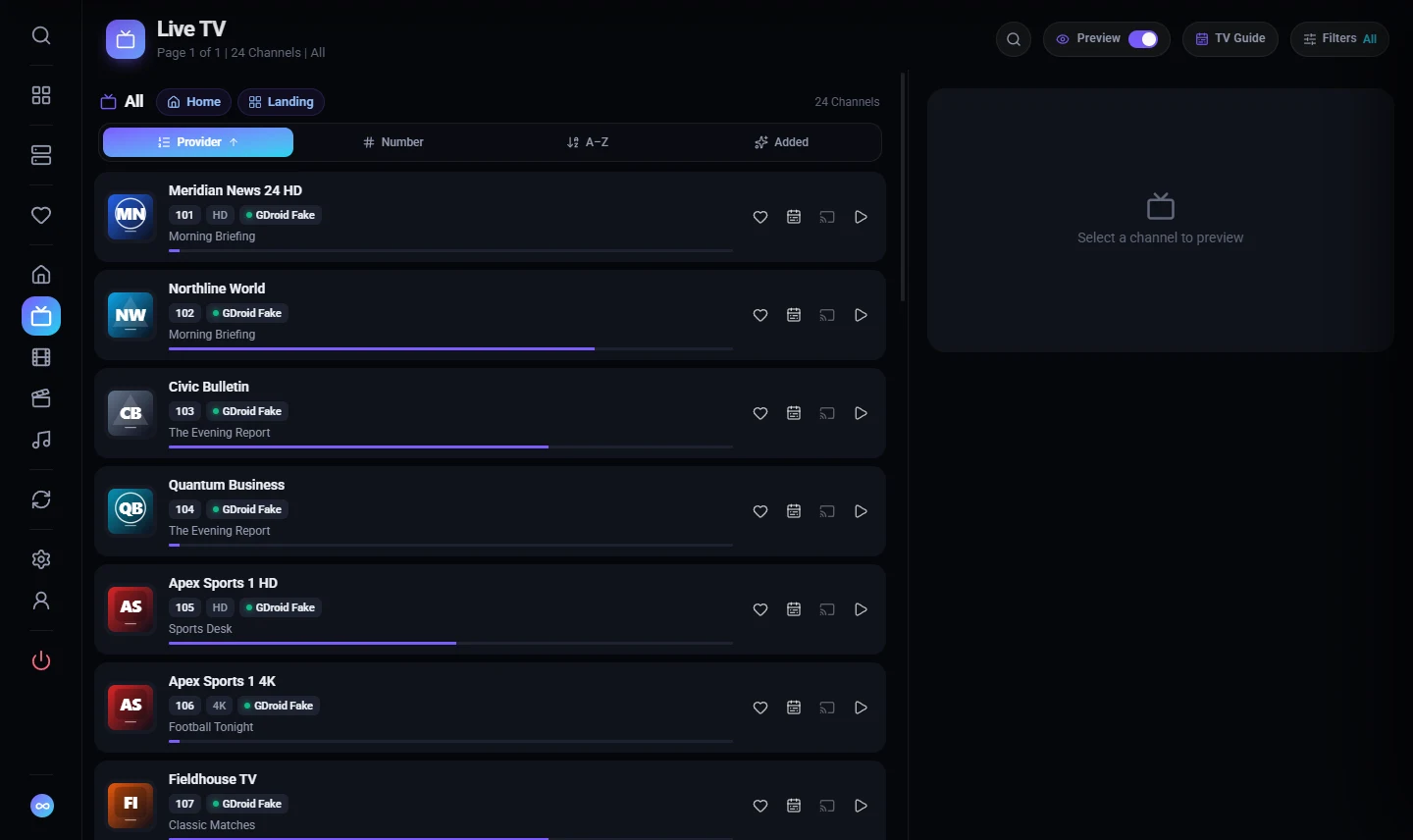
- The rail on the left opens into labels when you point at it: Search, Landing Screen, your service, Favorites, Home, Live TV, Movies, Series, Refresh Library and Settings (and Music when a service has some).
- Everything works with the arrow keys, like a TV remote: ← ↑ ↓ → and Enter, with Esc to go back. Ctrl K or / searches; Ctrl , opens Settings. See Every Keyboard Shortcut.
- Right-click any card for its menu: Favorites, Mark as Watched, TV Guide, Watch Fullscreen and more.
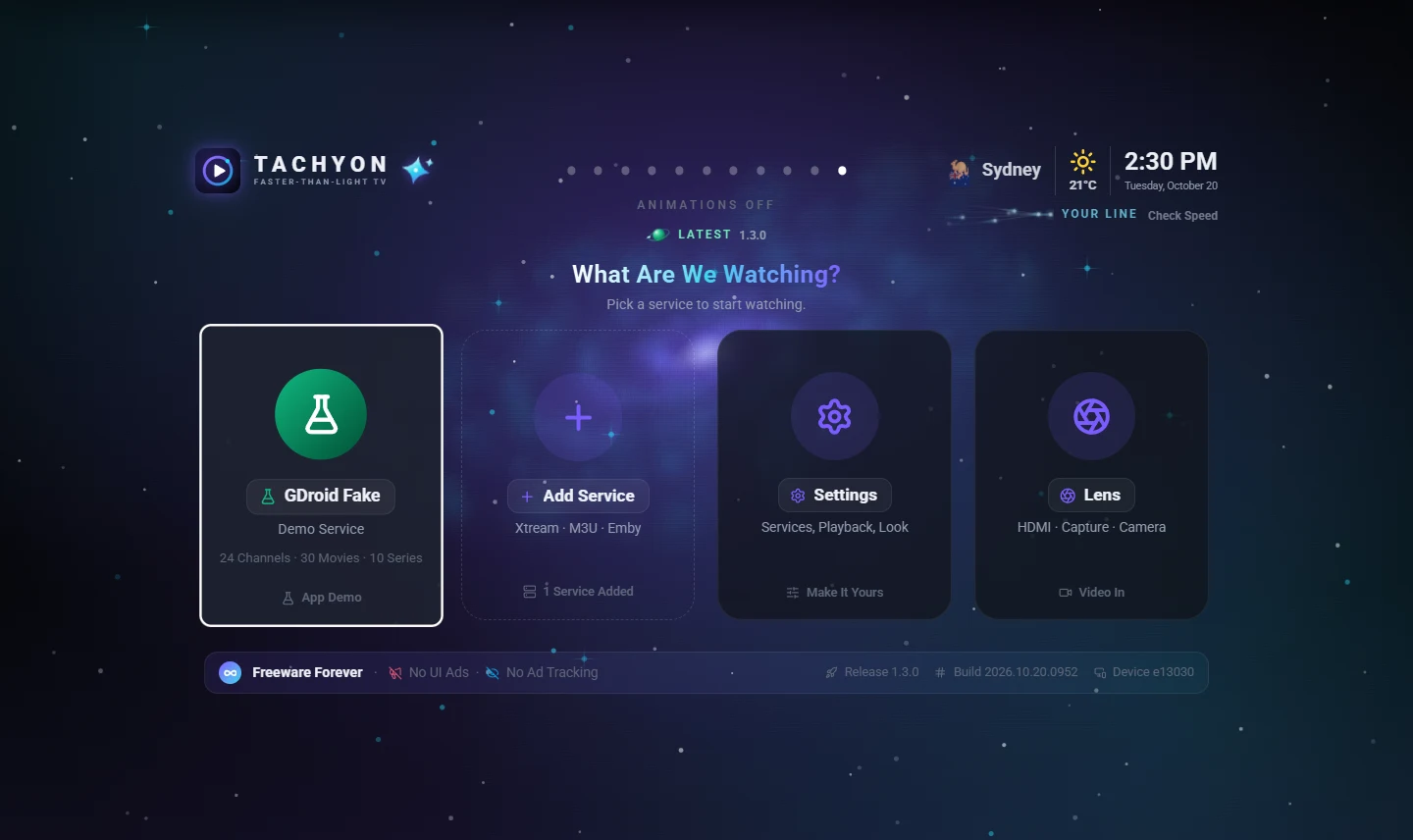
- Landing shows the time, the weather and Your Line — your internet speed, checked every few minutes while Landing is open (click it to check now). The dots at the top pick the moving background; the last dot turns the animations off.
The Player
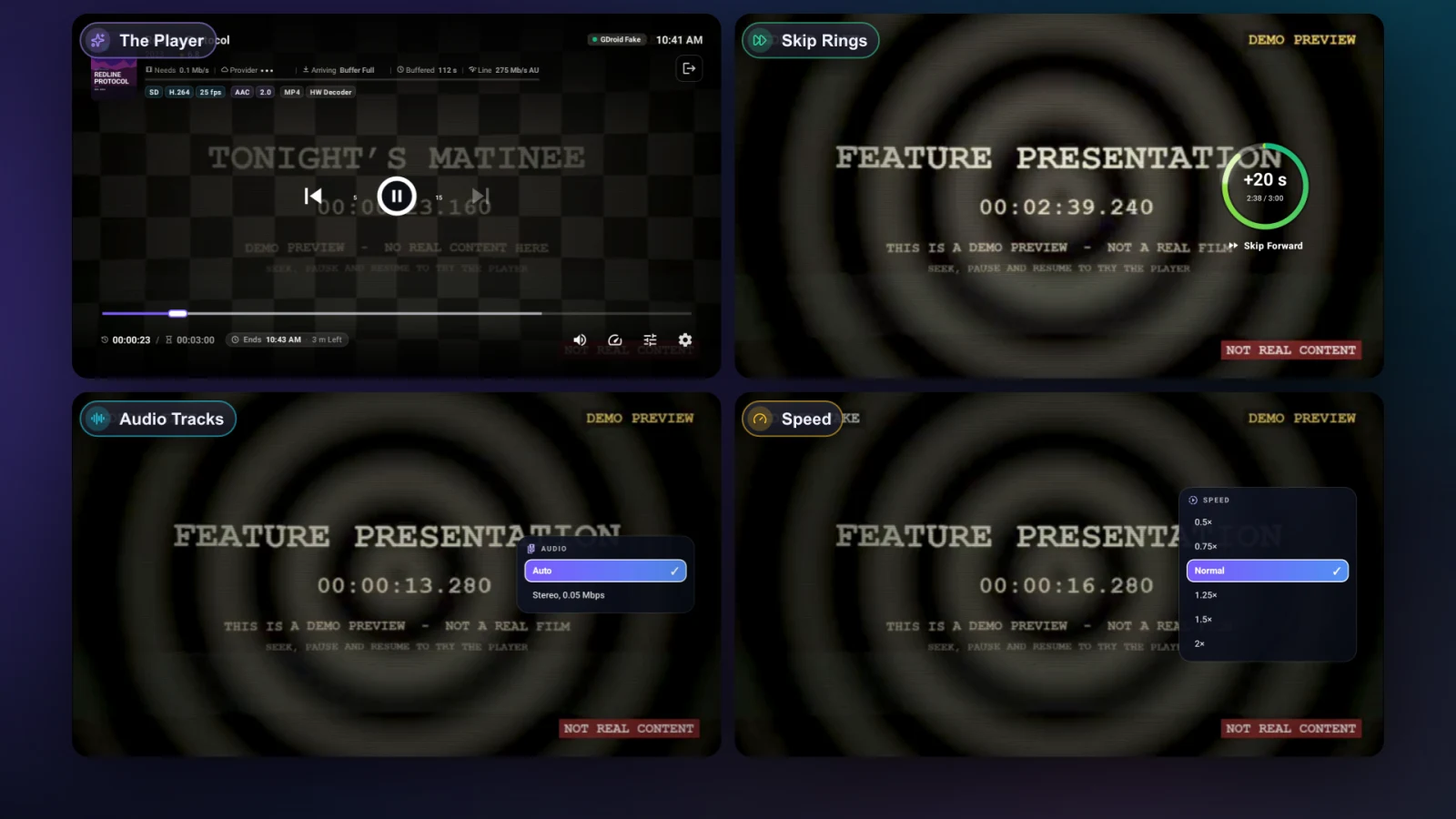
The desktop player has the same layout as the TV's: the header at the top, the buttons at the bottom, and the same Player Options. A few things only a computer does:
- Mini player (P): the window becomes a small, always-on-top player on the same stream — no reconnect. Drag it anywhere and resize it; Snap to Video Ratio fits it to the picture, and Esc brings the full window back.
- Always on Top (T) for the full window, and Screenshot (S).
- Stats for Nerds (I): the engine, resolution, frame rate, dropped frames, codecs, bitrate, buffer and live latency.
- External players: Open in VLC / mpv hands the stream to mpv, VLC or a player of your choice (Settings → Playback → External Player). Tachyon closes its own stream first, so one-connection plans keep working.
- Picture Repair and Universal Audio: channels a computer can't show as they are — interlaced 1080i, MPEG-2, Dolby or DTS sound — are repaired or converted on the fly, on your graphics chip when there is one.
Casting From the Computer
The Cast button sends a channel or movie to a Chromecast or Google TV on your network; a bar at the bottom right shows what the TV plays, with pause and Stop Casting. On a Mac, allow Tachyon to look for devices on your local network the first time it asks. See Cast to Your TV.
Tachyon Lens, Built In
The Lens tile on Landing opens Tachyon Lens: pick an HDMI capture card or a camera, and the window becomes just the picture. See Tachyon Lens.
Private and Up to Date
- Your services and settings are saved encrypted with Tachyon's own encryption, tied to this computer — no keychain prompts.
- With App Lock on, Windows Hello or Touch ID can open Tachyon instead of the PIN.
- When a new version is out, Landing shows New Release; Update Now downloads it from the developer's signed source, checks it and restarts. See Keeping Tachyon Up to Date.
Questions and Answers
Installer or portable — which should I pick?
The installer starts faster and lives in the Start menu. The portable .exe is for running without installing, for example from a USB stick. Both are the same app with the same settings.
Why does my Mac or Windows warn about Tachyon?
Tachyon is signed with the developer's own key, not a paid Apple or Microsoft certificate, so macOS asks you to confirm once and SmartScreen shows More Info → Run Anyway. Updates from inside the app don't ask again.
Can I use a remote with a PC connected to my TV?
Tachyon's whole interface works with the arrow keys, Enter and Esc, so any remote or keyboard that sends those keys works — Big-Screen Mode makes it comfortable from the sofa.