 TACHYON
Getting Started With Tachyon: Your First Ten Minutes
New to Tachyon? Install it, explore the built-in demo, add your own service and find your way around Home, Live TV, the guide and the player.
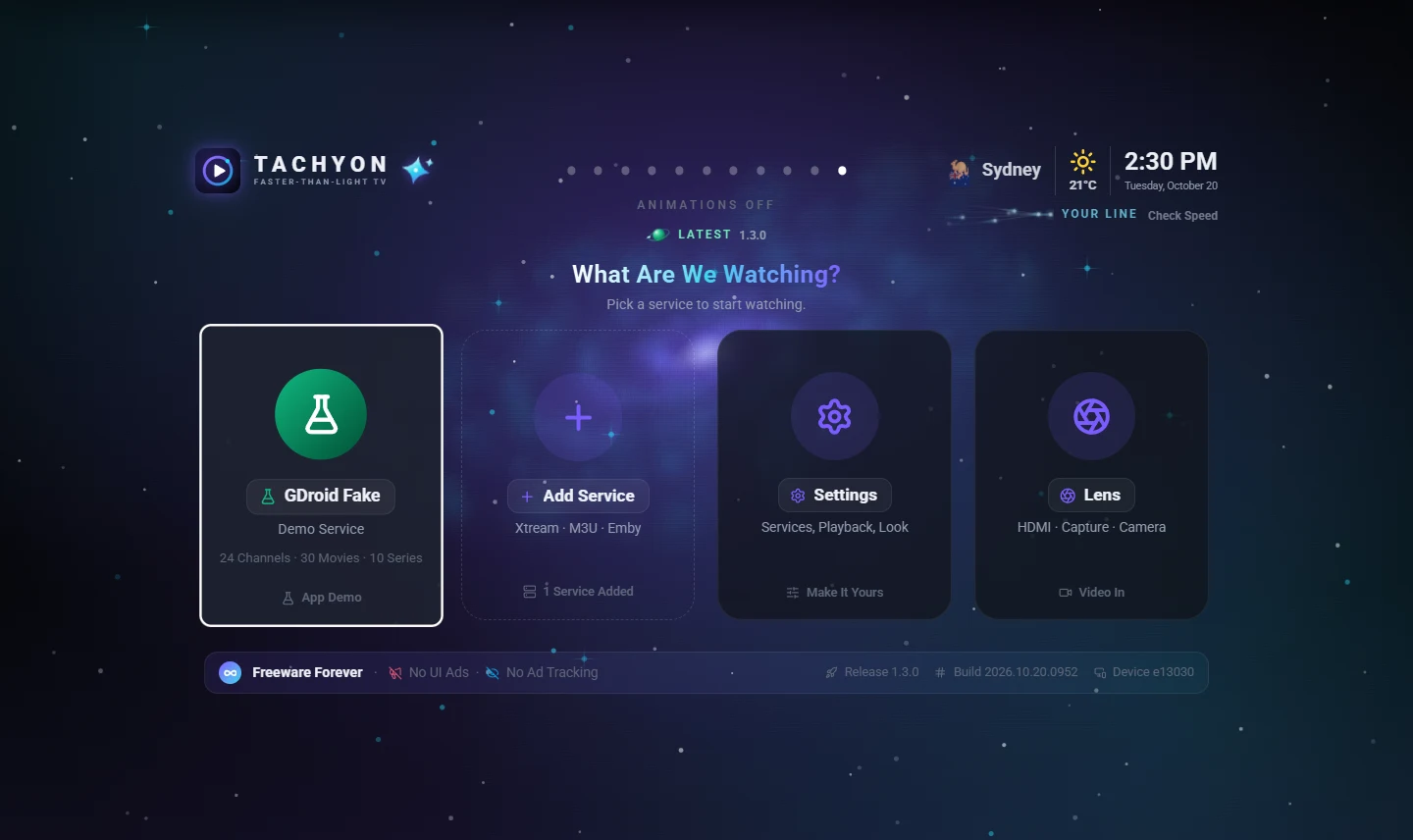
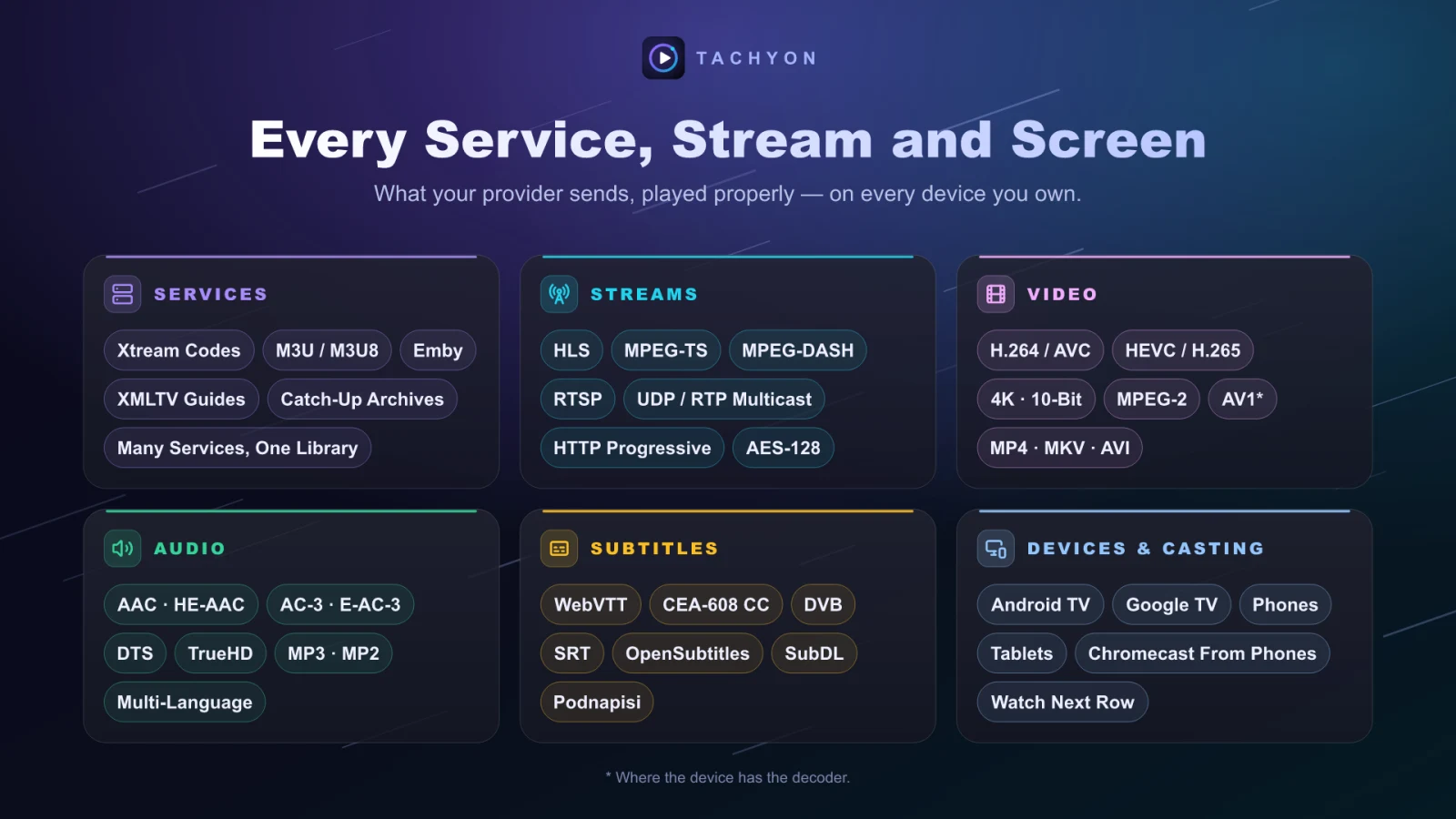
Tachyon is a fast, private player for the TV services you already have: an Xtream Codes account, an M3U playlist or an Emby server. It runs on Android TV, Google TV, Fire TV, Android phones and tablets, and on Windows, macOS and Linux computers. This guide takes you from a fresh install to watching in about ten minutes.
1. Install Tachyon
Pick your device on the Download page. In short:
- Google TV and Android TV: type a Downloader code in the free Downloader app. See Install Tachyon With Downloader.
- Fire TV: search for Tachyon in the Amazon Appstore — on Fire OS and on the newest Fire TVs with Vega OS — or, on Fire OS, the same Downloader codes after allowing Downloader to install apps.
- Android phones and tablets: download the APK on the phone and open it.
- Windows, macOS and Linux: download the installer, the disk image or the AppImage for your system.
Tachyon needs Android 7.0 or newer on phones and TVs (Fire OS 6 or newer, or Vega OS, on Fire TV).
2. Look Around With the Demo
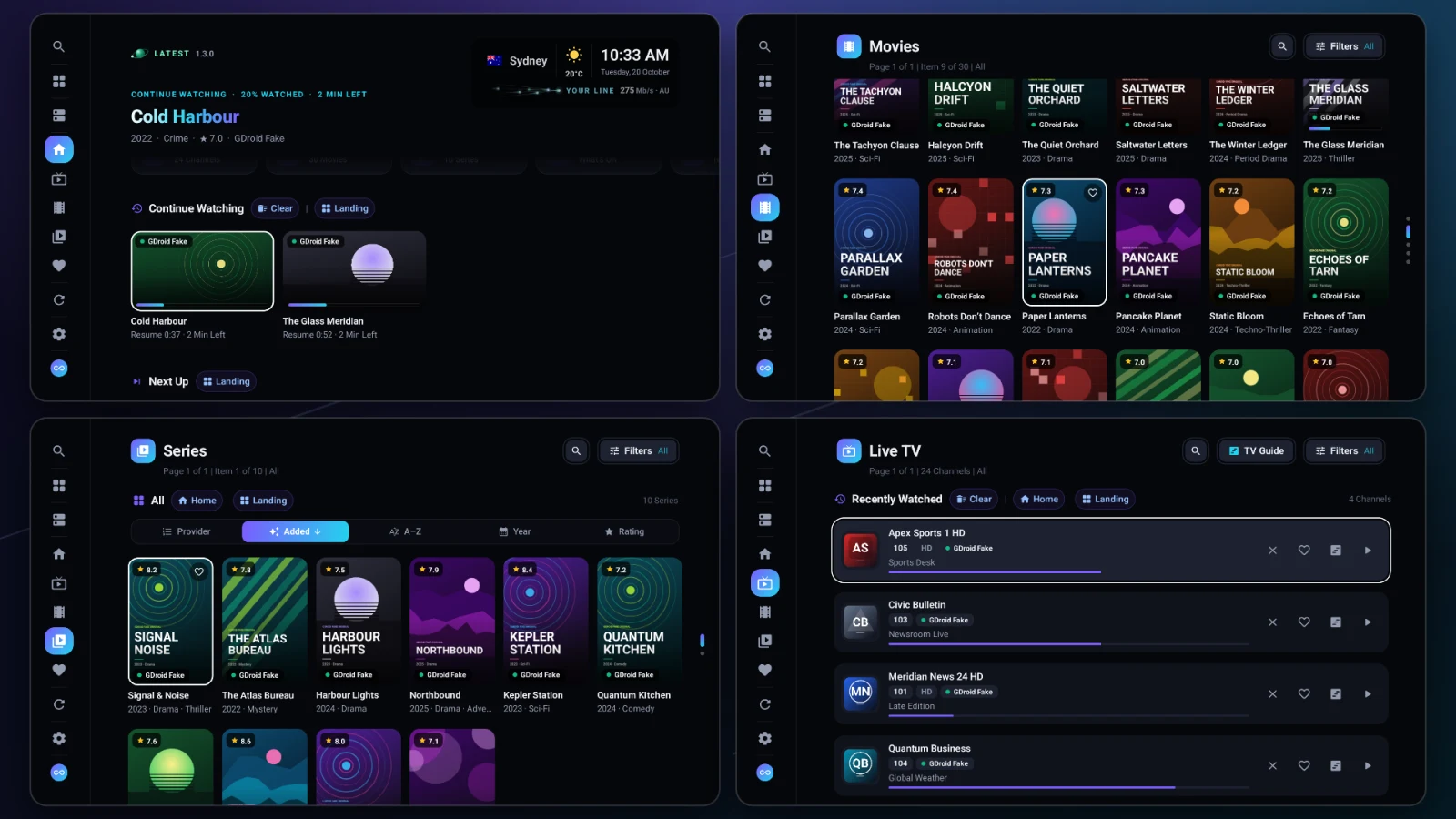
A fresh install starts with GDroid Fake, an offline demo service built into the app. It has 24 live channels with a two-day TV guide, 30 movies and 10 series, all with generated pictures and test clips. It uses no internet and no account, so you can try every screen before you add anything. More in Try Every Feature With the Built-In Demo.
3. Add Your Service
When you're ready, add the service your provider gave you:
- Open Settings → Services → Add Service (or the Add Service tile on the Landing screen).
- Pick Xtream Codes, M3U Playlist or Emby Server at the top of the form.
- Type what your provider sent: a server address with a username and password, or a playlist link.
- Select Test Connection to check the details, then Add Service.
Tachyon loads your channels, movies, series and TV guide. A big library takes a moment the first time; after that it opens straight from the device. The step-by-step version, with every field explained, is in How to Add Your Xtream Codes, M3U or Emby Service.
4. Find Your Way Around
- Landing ("What Are We Watching?") shows a tile for each service. With two or more, All Services merges them into one library.
- Home gathers Continue Watching, Next Up, On Now, your favorites and what's new.
- Live TV has the channels with what's on now, and Filters for categories and sorting. The TV Guide (from the top of Live TV) shows every channel on a timeline.
- Movies and Series have their own grids, with sorting, search and pages of 100.
- Search finds channels, movies and series across the service in view.
How you move depends on the screen:
| Device | How You Get Around |
|---|---|
| TV | The rail on the left (← opens it), the D-pad, OK and Back. Hold OK on a card for its menu. |
| Phone | The bottom bar (Landing, Home, Live TV, Movies, Series, Settings) and the side menu. A long press opens a card's menu. |
| Computer | The rail on the left, the mouse, or the arrow keys like a TV remote. Right-click opens a card's menu. |
5. Press Play
Select a channel or a title and the player opens. Its controls show with a tap, a click or OK, and hide again by themselves. Each device has its own way of controlling it:
- Watching on TV: The Remote in the Player
- Watching on a Phone: Swipes, Pop-Out and More
- Every Keyboard Shortcut in the Desktop App
6. Make It Yours
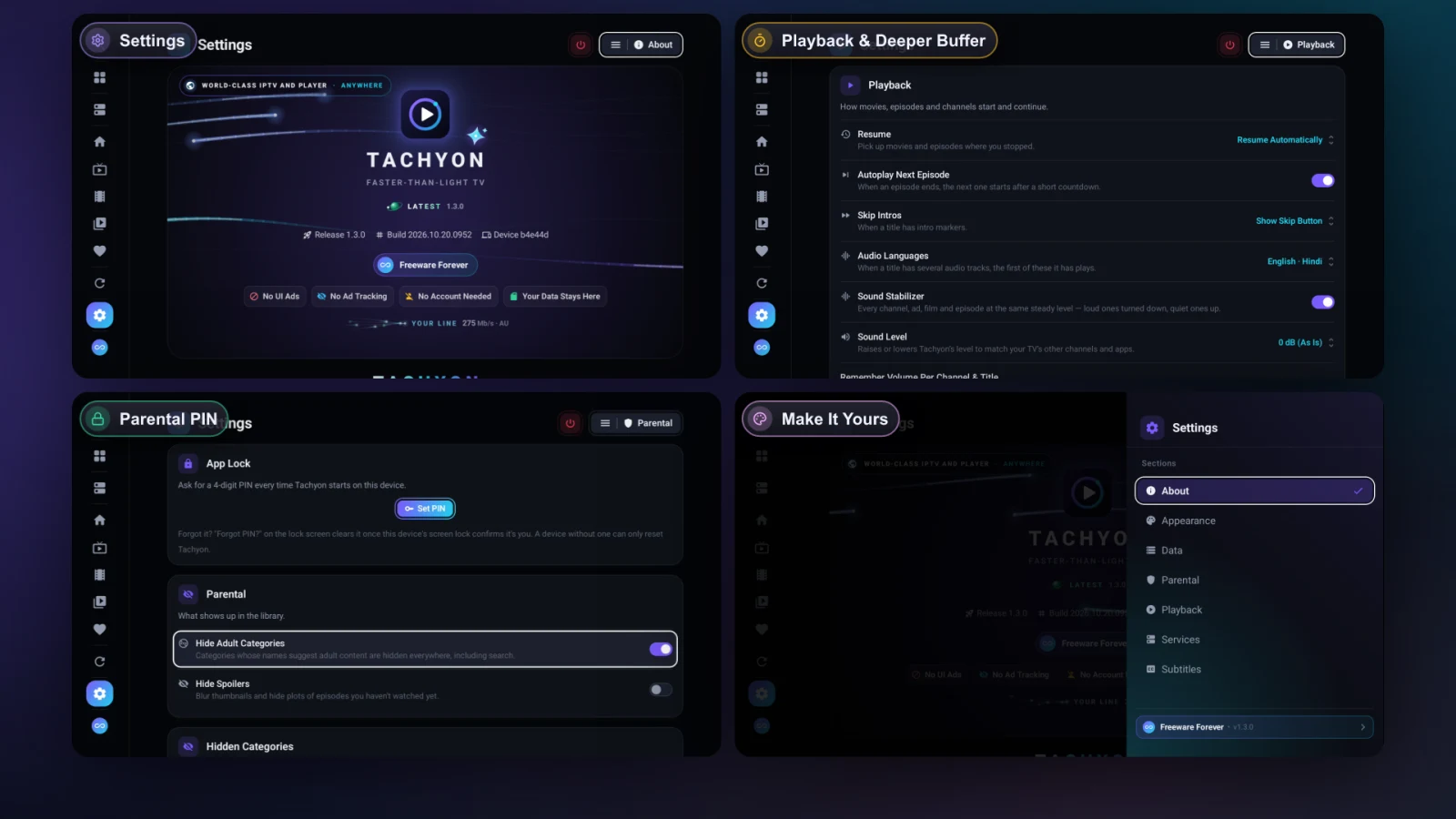
A few settings worth a look on day one:
- Android Settings → Playback → Audio Languages: the languages you want a title to play in first.
- Settings → Appearance → Home Rows: which rows Home shows, and their order.
- Settings → Subtitles: turn on an online subtitle service. Settings → Appearance → Subtitles sets how subtitles look.
- Settings → Services → Service Sync: use the same services on your TV, phone and computer. See Service Sync.
The full tour is in A Quick Tour of Tachyon's Settings.
Questions and Answers
Does Tachyon come with channels?
No. Tachyon is a player, like a TV set. You add the services you're entitled to use; the built-in demo shows how everything works first.
Is Tachyon free?
Yes. Tachyon is Freeware Forever: no subscriptions, nothing to unlock, No UI Ads and no account needed.
Can I use more than one service?
Yes. Add as many Xtream Codes accounts, M3U playlists and Emby servers as you like, switch between them on Landing, or watch them all merged under All Services.